Logo Animation Export Guide: 720p, 1080p, 4K, MP4 and WebM
Choose the right logo animation resolution and video format based on delivery platform, browser codec support, rendering time, and device limits.
 LogoFuse Team
Choose logo animation export settings from the delivery requirement backward. For most vertical social posts, 1080 × 1920 is the practical final size. Use 720p for drafts and constrained devices; use 4K when you need a master, crop latitude, a large display, or an explicit client specification.
Key takeaways
- 720p is useful for drafts, timing tests, review, and lightweight publishing.
- 1080p is the practical default for most vertical social delivery.
- 4K is appropriate for reusable masters, cropping, large displays, or required delivery specs.
- MP4 with H.264 is broadly useful when the browser can encode it.
- WebM is a valid browser fallback, but the destination must accept its exact container and codec.
- Higher resolution cannot restore detail missing from a poor source logo.
Which logo animation resolution should you choose?
Use the smallest resolution that safely meets the real delivery requirement. That reduces rendering time, memory pressure, upload time, and failure risk without sacrificing visible quality.
| Output | Vertical dimensions | Best use | Main tradeoff |
|---|---|---|---|
| 720p | 720 × 1280 | Drafts, tests, quick review, lightweight posts | Less detail for cropping or large displays |
| 1080p | 1080 × 1920 | Most final social and product-launch delivery | More render time and memory than 720p |
| 4K | 2160 × 3840 | Masters, large displays, crop-heavy editing, client specs | Four times the pixels of 1080p per frame |
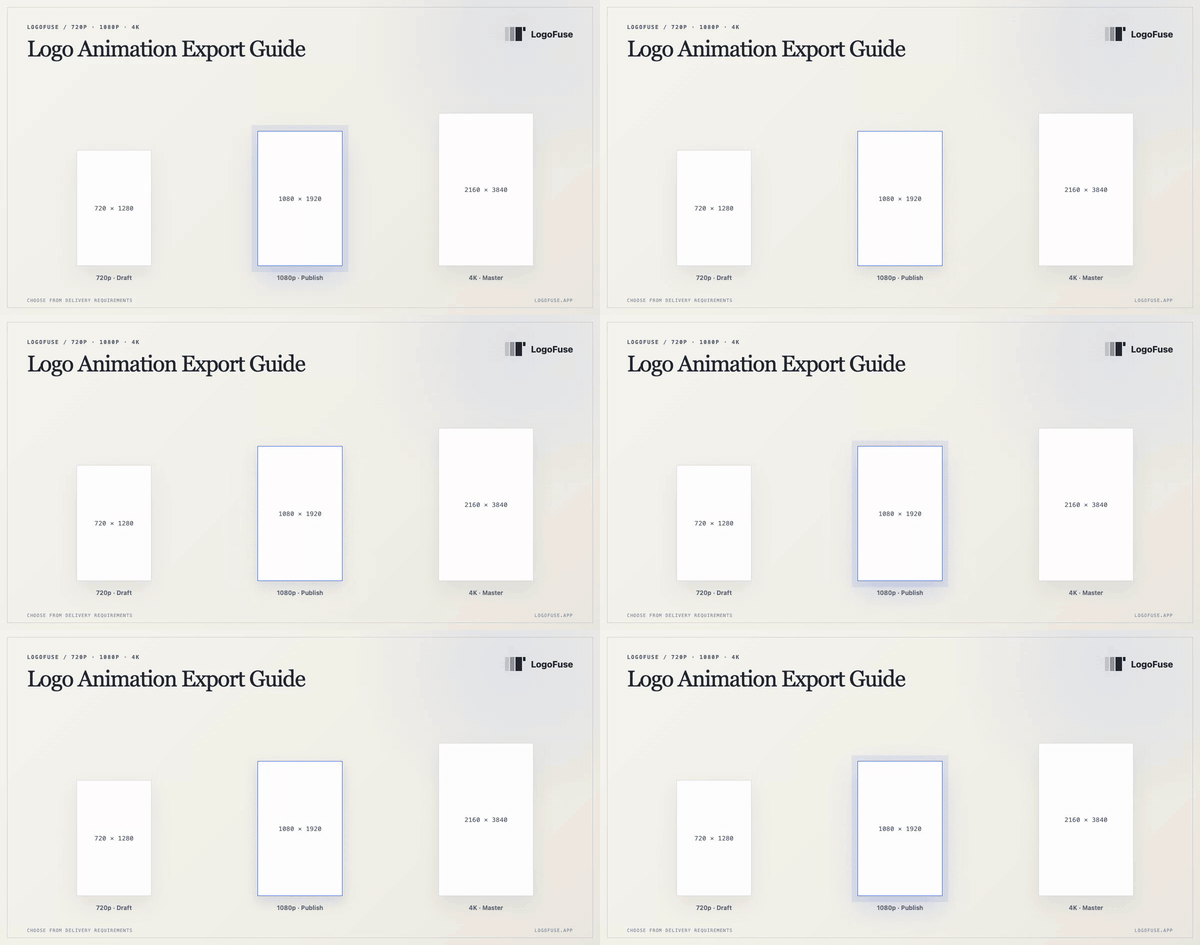
Resolution should follow the delivery job: draft, publish-ready output, or reusable master.
When should you export 720p?
Use 720p for rapid iteration, internal review, timing tests, and channels where file weight matters more than master resolution. It is also the safest option on devices with limited memory or older graphics hardware.
In LogoFuse, 720p is the lowest-friction Logo Motion export. It is available without sign-in and lets you verify color, pacing, safe area, audio, and logo readability before committing time to a larger render.
Do not dismiss 720p automatically. If the asset appears as a small element inside a presentation or prototype, the extra pixels of 4K may never be visible.
When is 1080p the right choice?
For a 9:16 video, Full HD is 1080 × 1920. It provides enough detail for most TikTok, Reels, Shorts, and product-launch placements while remaining substantially easier to render and upload than 4K.
YouTube's recommended upload settings identify MP4 and H.264 as recommended choices and explain that the player adapts to vertical and square aspect ratios. TikTok Business's video specification recommends 9:16 for vertical ad video. Platform interfaces and requirements change, so verify the current destination before a campaign delivery.
A sharp source logo still matters. Exporting a soft JPEG at 1080p increases the frame dimensions but does not reconstruct missing edge detail.
When is 4K useful?
Vertical 4K is 2160 × 3840. Use it when the file will become a reusable master, appear on a high-resolution display, be cropped into other layouts, or satisfy a written client requirement.
The computational tradeoff is measurable: each 4K frame contains four times the pixels of a 1080p frame. The browser must render, hold, and encode those pixels for every frame. LogoFuse therefore checks browser encoder support, GPU texture size, memory, and account eligibility before offering a 4K path.
If the final destination will immediately downscale to 1080p and no crop is needed, a 4K export may add time and risk without adding visible value.
Should you choose MP4 or WebM?
The container name and the video codec are different decisions. MP4 is a container commonly paired with H.264/AVC; WebM commonly contains VP8, VP9, or AV1-family video depending on the workflow.
| Format | Choose it when | Check before delivery |
|---|---|---|
| MP4 / H.264 | You need broad compatibility with social, presentation, and client-review workflows | The current browser can encode the required profile and audio combination |
| WebM | The browser supports it as a reliable fallback or the asset stays in a web workflow | The receiving platform accepts the specific WebM codec and audio track |
The MDN video codec guide maps common codecs to containers, while the container format guide explains why a file extension alone is not enough to determine compatibility.
LogoFuse prefers H.264 MP4 when the browser exposes the required encoder. Supported lower-resolution workflows can fall back to a compatible WebM path. Always test the exported file in the final platform rather than assuming a successful download guarantees acceptance.
Why can browser video export fail?
Common causes include:
- insufficient memory for the selected frame size;
- a GPU texture limit below the requested vertical dimension;
- an unavailable video or audio encoder;
- a browser tab being suspended or throttled;
- another GPU-heavy tab competing for resources;
- an unsupported container and codec combination;
- closing or navigating away before the file is finalized.
Start by closing heavy tabs, keeping the export page active, and testing 720p. If that works, move to 1080p. Treat 4K as a capability-dependent workflow rather than a guaranteed option on every device.
What should you check before the final export?
- Play the entire animation, including the final frame.
- Check logo recognition at actual phone size.
- Confirm safe margins against platform overlays.
- Verify the background and brand colors on the target display.
- Listen for clipped or mismatched audio.
- Export a short draft and upload it privately to the destination.
- Render the final resolution only after that test passes.
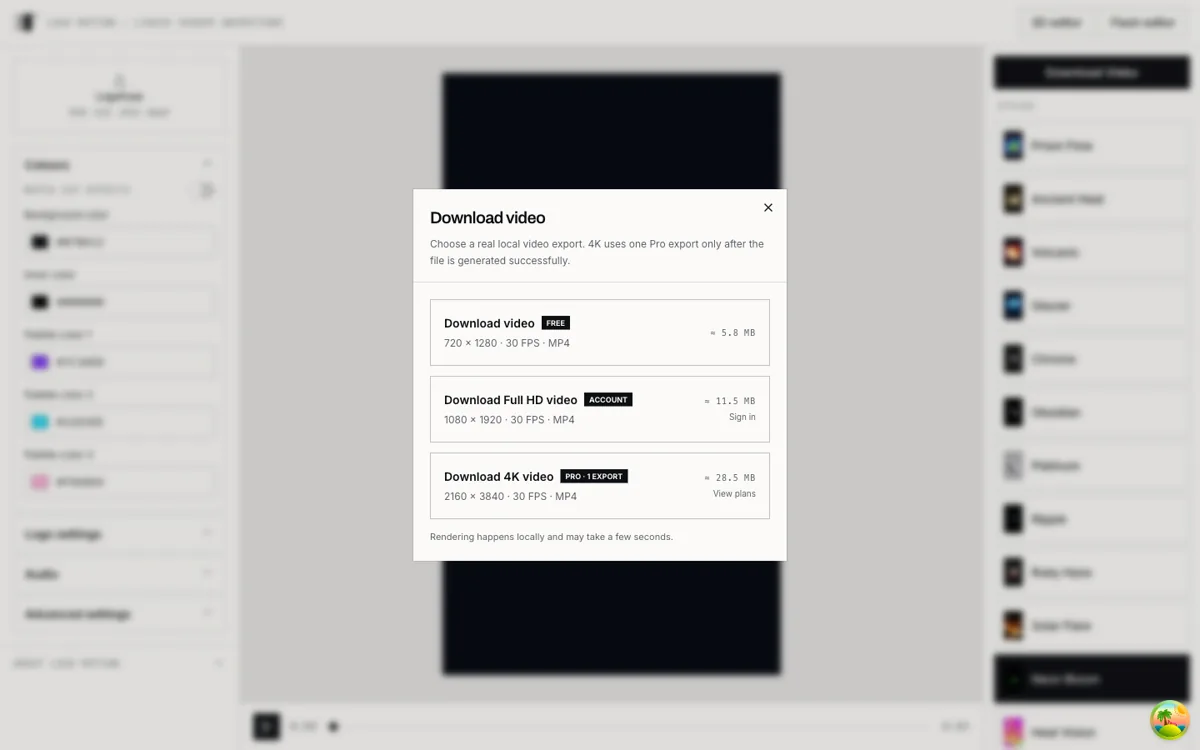
LogoFuse separates draft-friendly 720p, signed-in 1080p, and eligible 4K output so the cost and device requirement are explicit.
LogoFuse reserves a paid export while rendering and commits the allowance only after the file succeeds. A failed or cancelled paid render releases the reservation. Review the current rules on the pricing and export page.
Related LogoFuse guides
- How to use LogoFuse from upload to export
- Why browser preview and export have different workloads
- Browser vs cloud rendering for logo animation
Open the Logo Motion editor, complete a free 720p test, and move up only when the destination requires it.